Posts

How to drop a pin on google maps free

Image
Abundant of developers faced this problem how to drop a pin on google maps  free. If you want to embed a map on your website, the best solution is Google Map . Now the question is, how to drop a pin on google maps free? You can easily drop a pin on google map. But how would you drop a pin on google maps with multiple locations free. Here is the free mapping tool, via this you can  create a google map with multiple locations . Below creating a tutorial on, How to drop a pin on google maps free Dashboard Here is the dashboard, after click on '+CREATE A NEW MAP' button you will redirect to another page. Create google map with multiple location Creating map This is the first step of creating a google map with multiple locations. You can edit title and description of map. And also guide yourself via creating multiple layers on google map. Edit title and description Edit title and description You can see I am editing the title and description of google map....
How to create a new drive or partition your hard drive

Image
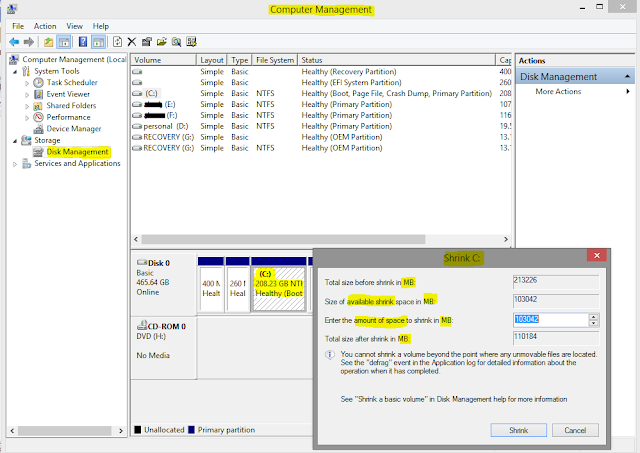
Abstract- Somehow, we need to create a new drive, for gathering ours personal components like as software, picture, documents. Besides, when we buy a computer, it contains may be 2 or 3 drive (with 500GB/1TB Hard-disk). But we need minimum 5 to 6 drives (approximately). For those reasons, we have to make new partition/new volume. Now I am going to show you that how to make new partition/new volume .it’s easy & simple to do. Let's make it simple. Follow me- N.B- Focus on highlighted color :-( Yellow ) ( Red ) Type (windows key +R), it shows a box (RUN). Type - compmgmt.msc on this (RUN) box. after typing, hit enter. It shows a box like below of this content. Through this box, we can know about all of things (specifications) whatever we have to need. From the left side, we will chose -Disk management. It will show all of existing volume. Now, we will select this existing Drive where has vast amount of space (200GB or more). Selecting this existing drive, we can go to-shrin...

How to check PC components full specifications - How do I find easily

Image
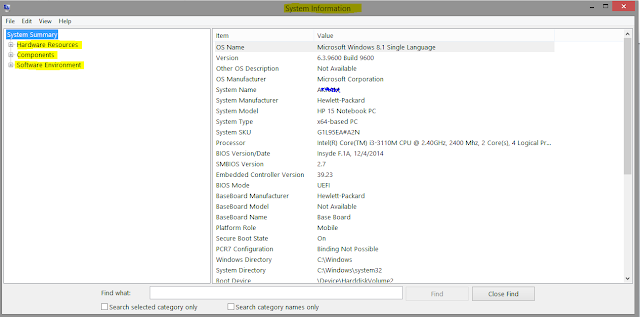
Abstract - Sometimes, we need to know about ours PC components specifications, it can be hardware components or software components. What are my PC components specs? We always face this issue. For knowing about those PC components specs, we need to go device manager, properties, setting etc. That’s mean to check full specifications of computer need to do various clicks on various folder. Besides, someone takes help another 3rd party software for knowing about his/her PC components specifications. For being those hassle, I recommend to do this step to know full specifications (hardware & software). Its easy & time consuming method. How do you do it? Check below.  Do those steps, its pretty simple. N.B- Please attention on highlighted color:- ( Yellow ) ( Red ) > Press ( windows/super key + R ), it shows a box (Run). Type - msinfo32 on this (Run) box. After typing, hit  enter . It shows a box like below. On this box, you can know about all of things (s...

Check and Uncheck all checkboxes with jQuery

Checkbox Plays a key role in forms. We always try to find some shortcut way. The check and uncheck all functionality basically a shortcut where the large list of records are available and all of them need to select through one click. By this functionality user can easily do work. "I am literally confused how to check and uncheck all checkboxes with jQuery." you inner mind is speaking like that maybe. But, now I am here to help you how to do it with jQuery. I will show you, how to check all parent checkboxes with button and without button. Here is the HTML: <!-- jQuery: https://cdnjs.cloudflare.com/ajax/libs/jquery-compat/3.0.0-alpha1/jquery.min.js --> <!-- Bootstrap 4.1v --> <div class="container my-3"> <h2>Example1 - Check and Uncheck All With Single Button</h2> <input type="button" class="box btn btn-default mb-3" id="box" value="check all" /> <div> <input type="c...

How to speed up your computer

Image
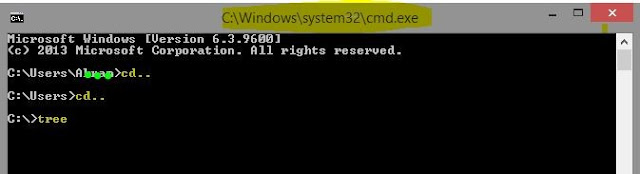
Abstract- We always want ours computer should run fast. But it is a matter of sorrow that sometimes it faces some obstacles like as slow to do any task, slow windows start up, lunch any application etc. for being this hassle, we may not feel comfort to use our computer .Now I am going to show you some features to run fast a computer without using any third party software. Now do those steps, its simple N.B- please attention on highlighted color :-( Yellow ) ( Red )  Type ( windows key + R ) ,it shows a box (RUN) . . Type- cmd on this (run) box. after typing hit enter . It shows a box like below. Then do this- cd.. < hit–Enter button > cd.. < hit–Enter button > tree < hit–Enter button >. It will take time.          At last type- Exit .  Press ( windows key +R ), it shows a box (RUN). Type- services.msc on this (RUN) box. After typing, hit enter . It shows a box like below. From there you can stop any of your apps which run ...

The best example of the difference between JavaScript and jQuery

Image
Most common and popular question is, What exactly is JavaScript? What exactly is jQuery? What are the difference? How would we know which one is JS and which one is jQuery? Actually, when I started learning web development. I was too confused and how to determine which one is JavaScript and which one is jQuery language. In this article, you will have example of JavaScript language and jQuery language. And you will also gather knowledge about the difference between JavaScript and jQuery. Some of people said that, they look like competitors. But in real, they aren't. So what's the difference between JavaScript and jQuery? JavaScipt is a programming language, while jQuery is a library. Without JavaScript, jQuery is nothing. Because JavaScript was born first then jQuery built. JavaScript can live by itself, while jQuery doesn't. JavaScript created in the mid-90s, by Brendan Eich . JavaScript becomes popular so fast, because of it's friendly behavior. It can run ...

How to hide a drive in windows without any software

Image
Abstract- We know that somehow third party tools or software are hassle for us & also non-trustful. But we badly need to hide our drive. In this circumstances, we can do ourselves without installing any software or third party tools. Now, I am going to show you. How to hide a drive without using any software? Now do those steps, if you want to see How to hide a drive without any software? . N.B- Please attention on highlighted color :-( Yellow ) ( Red ) & DRIVE letter. And type commands without quotation. Type ( windows key +R ), it shows a box (RUN)  Type - 'cmd'  on this (run) box After click OK button, it shows a another box & type on there 'diskpart'  & hit Enter button. It will show you another box, on there type 'list volume' & hit Enter . After that, drive list will be shown. Now, its your choice which drive you want to hide. I have hide DRIVE D . Type 'select volume D' & hit enter .  The Drive D has selec...